
Import data from other software
There are two ways to import data from other programmes into MyGANTT
Method 1 – Only Subject field
The first method is also the simplest. You can import a list of tasks stored in a .TXT file
In this case, the import is limited to the Subject of each task only, and it is not possible to import any other data. All task data must then be entered manually at a later stage. You can also do this quickly directly from the Gantt chart using the tasks indicatedHERE
This method is well suited to importing raw data or handwritten notes saved in a text file.
To guide you, I’ve included a screenshot with the relevant points highlighted

To do this:
- click on the lightning bolt icon (1) in the toolbar
- click on the TXT file icon (2) in the window that opens
- specifying the file with the .TXT extension to be uploaded
- now you’ll see the list of entries in the input window (3)
- you can edit the list as you wish
- click on the cog icon (4) to import the list.
Method 2 – All fields
Using the second method, you can import all the main fields for tasks and resources
To do this, click on the ‘Import’ menu item in the ‘Data’ menu, as shown in the figure below

In the window that has opened, to import tasks, you will need to select the file to import using the magnifying glass icon shown in point 1 of the image below. Once the file has been selected, it will appear in the box indicated by point 2, showing the path, file name and extension
This procedure applies to importing tasks based on the Data Type set in point 3. If you wish to import resources, the procedure is identical, but you must select ‘Resources’ in the Data Type selector.

If the file contains the correct data (in accordance with the structure shown below), the programme will display the data table to be imported within area 4. The recognised fields and the rows to be processed are shown.
In point 5, you will find the number of rows that will be imported.
To confirm the import, simply click on the cog-shaped icon shown in point 6
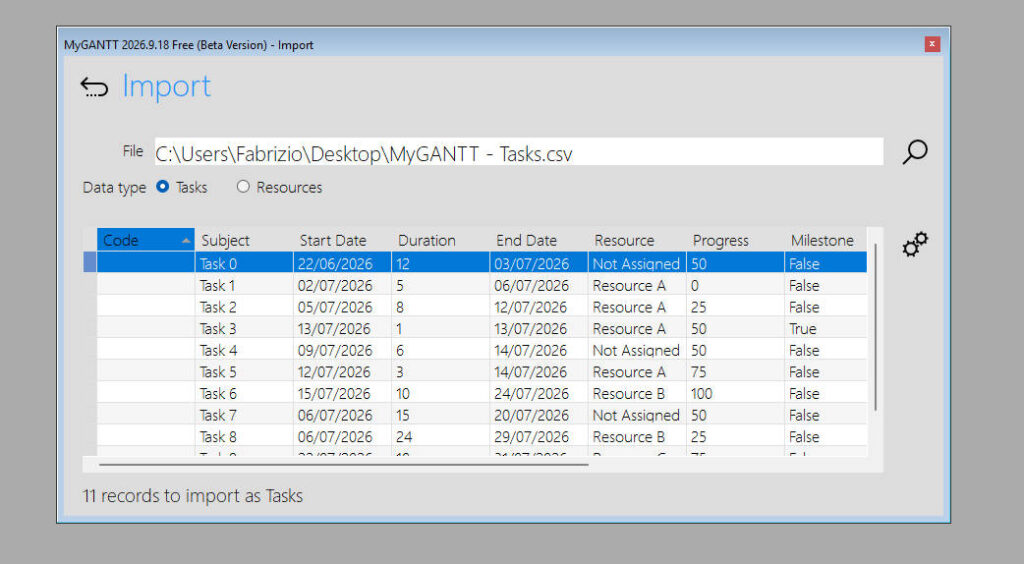
Structure of the‘Tasks’ tablefor import
- Code (String)
- Subject (String)
- Start Date (String in DD/MM/YYYY format)
- Duration (Integer)
- End Date (String in DD/MM/YYYY format)
- Resource (String)
- Progress (Numeric value 0 / 25 / 50 / 75 / 100)
- Milestone (True or False)
- Priority (String: High / Normal / Low)
- Colour (Hexadecimal string#FFFFFF)
- Link (String)
- Note (String)
The file to be imported must contain at least the ‘Subject’ field. The others are optional. I recommend using at least Subject, Start Date and Duration.
Structure of the‘Resourcess’ tablefor import
- Code (String)
- Name (String)
- Email (String)
- Link (String)
- Colour (Hexadecimal string#FFFFFF)
- Cost (Decimal number)
- Notes (String in DD/MM/YYYY format)
In this case, the resources file must contain at least the “Name” field to be imported; the others are optional.
IMPORTANT NOTE
Currently (Version 2026.9.18), the import file is only available in CSV format. Future versions will include the option to import other formats such as TXT, XML, JSON, XLSX, etc.

